Shadowrocket Download
Verify the App Store listing
A paid app with a one-time purchase, available only on the App Store. Check your storefront and account first, then verify the app details. After purchase, use your own subscription or server details to set up a connection.
932747118
$2.99 one-time purchase · US reference
Universal for iPhone and iPad
Refer to the App Store page for current pricing, system requirements and Universal Purchase availability.
Storefront and account region
Shadowrocket isn’t available in the mainland China storefront. Whether it appears in search depends first on the country or region associated with your Apple ID—not your device’s current location or the language of this website. The button on this page opens the US product page, but that link won’t switch your account to the US storefront. Whether you can buy the app, and which currency you’ll be charged in, depends on your current App Store account and storefront.
Check the account used for Media & Purchases
On your device, open Settings, tap your Apple ID at the top, then go to Media & Purchases → View Account → Country/Region. Check the region shown; you don’t need to change it right away. Your iCloud account and your media purchasing account may be different. To confirm which account owns a purchase, check the one signed in under Media & Purchases.
To review the steps for changing your region, go to Settings → Apple ID → Media & Purchases → View Account → Country/Region. Apple will show the eligibility requirements and next steps. Factors such as account balance, active subscriptions, Family Sharing status and payment method may affect whether you can proceed. Read each prompt carefully. This page can’t guarantee a region change will succeed, and we don’t recommend bypassing account requirements just to make a purchase.
If the product page says the current storefront isn’t available, check your account region before assuming there’s a problem with the app. If the page loads but your payment is declined, distinguish between a purchase that hasn’t gone through and a completed purchase followed by a failed download. The first requires resolving a payment or account issue; the second calls for checking network access, storage and device compatibility. Keep the full error message—it’s more useful than repeatedly tapping Buy.
How to identify the genuine Shadowrocket app
Use the name to find the app, then verify the developer, icon and app ID. Don’t rely on the nickname “Shadowrocket” alone.
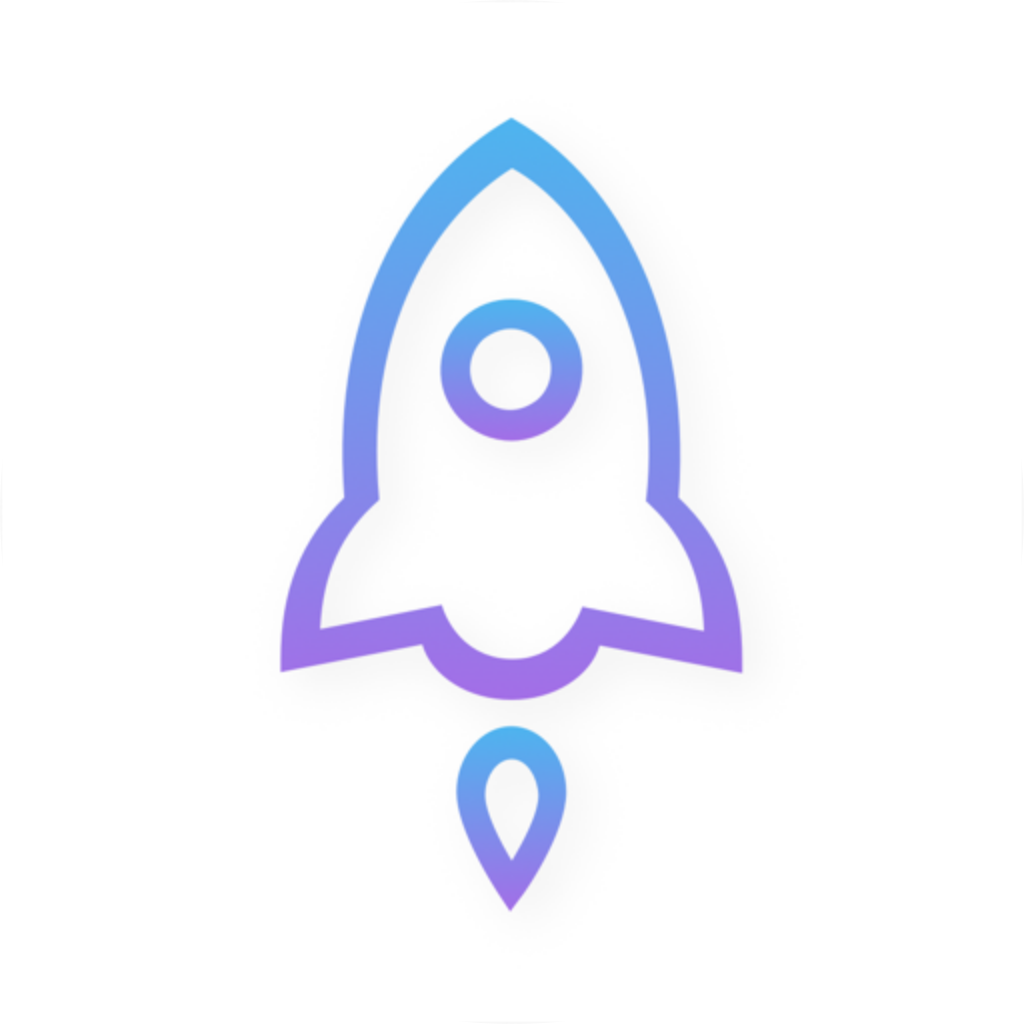
Shadow Launch Technology Limited
id932747118
Developer: verify the full name
Open the App Store product page and confirm the developer or provider is Shadow Launch Technology Limited. Don’t rely on the first search result, a similar-looking name or the icon color alone. Search results may include apps with similar names. On the product page, compare the full developer name with the details here to make sure you’ve found the same app.
Icon: check the official artwork
The official icon is a blue-and-purple outlined rocket on a white background, and the icon shown here is the same official artwork. A similar color scheme doesn’t mean it’s the same app, so use the icon as just one of three checks—not a substitute for verifying the developer and app ID. If the app name, developer and icon don’t match, don’t buy it. Recheck the listing through the App Store product page linked on this site.
App ID: check the product page URL
The app ID is 932747118, and the product page URL contains id932747118. The storefront may vary by account region, but verify this number to confirm the app. All three details should match; similarity in just one isn’t enough. If you’re viewing a different app, don’t assume it’s this product just because its description mentions Shadowrocket.
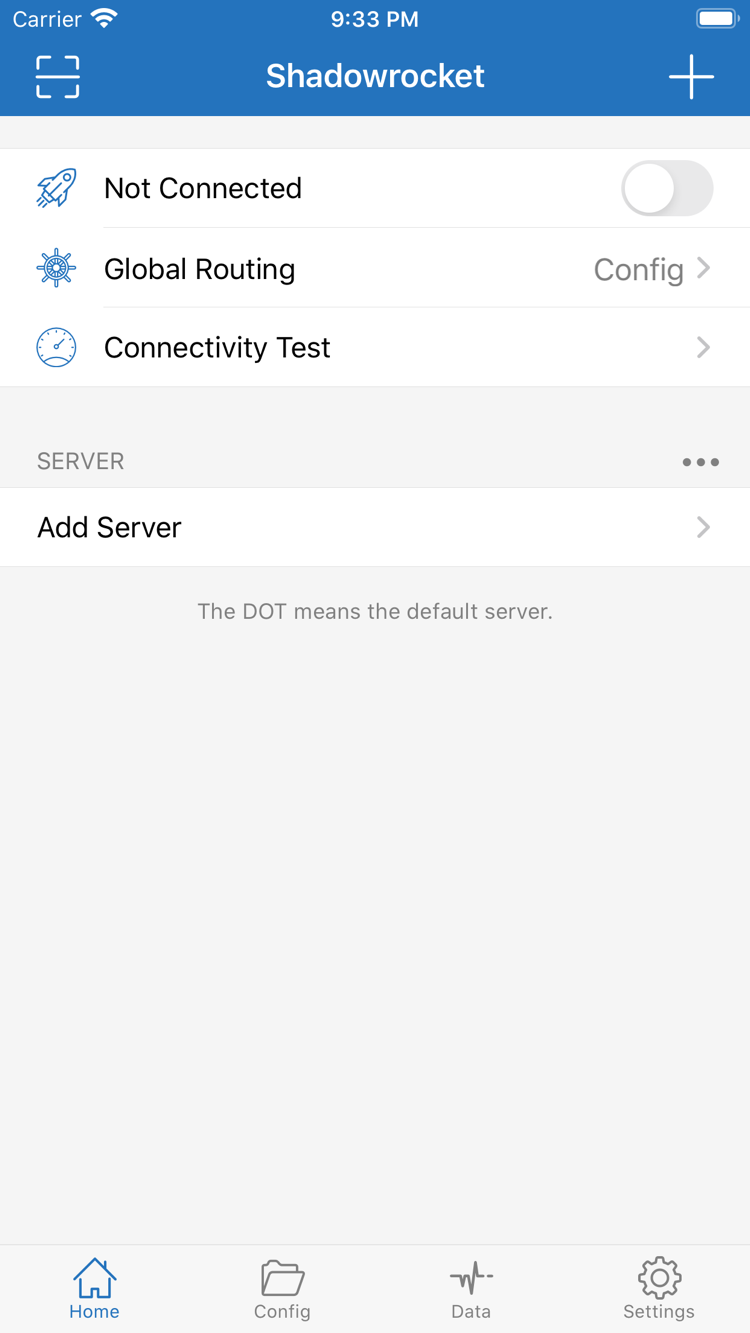
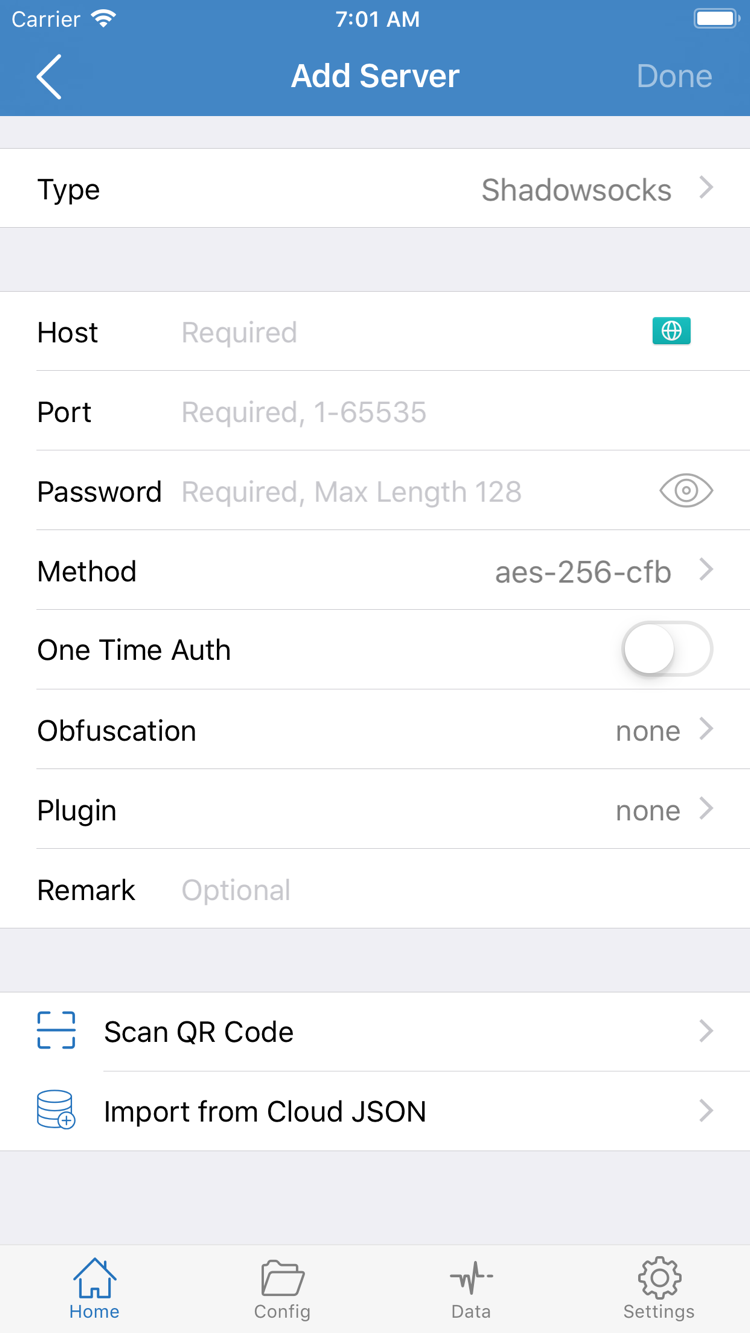
The two images on the right are official English screenshots uploaded by the developer to the App Store. Use them to locate features such as Home and Add Server. Your device may not show the exact same layout: the interface language, screen width and app updates can all affect how it looks. Use the screenshots as a guide, but rely on the store listing to verify the app before buying.
Download and open Shadowrocket on iPhone
Expand the compatibility details on the App Store product page and check that your iPhone meets the requirements. Refer to the App Store page for system requirements; system versions mentioned in older guides may no longer apply. After verifying the developer, icon and app ID, make the purchase with your own Apple ID. Wait for the App Store to finish downloading, then open Shadowrocket from your Home Screen.
A cloud icon on the button usually means the current account has a previous acquisition record, so check Purchased first. If a price appears, check whether the app was bought using a different Media & Purchases account. During checkout, rely on the currency and amount shown by the system. If you’re asked to verify payment details or accept account terms, follow the App Store prompts—this isn’t a setting inside Shadowrocket.
Buying the app doesn’t connect you to a server
It’s normal for Home to show no connection when you first open the app. You’ll need your own subscription or server details; get subscriptions from your provider, then import them using the relevant option. Adding connection details and starting a connection are separate steps. After using Add Server or importing a subscription, confirm the entry appears and its settings are complete. Then check Global Routing before turning on the connection.
When you connect for the first time, the system may ask permission to add a VPN configuration. This authorizes the system to create a network extension connection; it isn’t another app purchase. Read and confirm the prompt only after you’ve initiated the connection in Shadowrocket and verified its source. Complete any device verification requested. If you previously canceled, return to the app and try again. If the device is managed, check whether a policy is restricting this action.
Ready to set things up? Continue with the Getting Started guide and follow the steps to import your details, choose Global Routing, connect and test. If the App Store finished installing the app but the connection switch won’t turn on or pages won’t load, see Troubleshooting to narrow it down to system permissions, configuration details or network issues. You don’t need to delete and reinstall the app first.
Install on iPad and other Apple devices
One purchase with the same Apple ID lets you install Shadowrocket on compatible iPhone and iPad devices. On your iPad, first confirm that the original purchasing account is signed in under Media & Purchases, then check Purchased in your App Store account. Refer to the App Store page for system requirements and Universal Purchase availability. If a price appears on your iPad, check the account and purchase history before paying again.
An iPad’s wider screen may arrange lists, details and settings differently from the official iPhone screenshots on this page. Use labels such as Home, Config, Settings and Add Server to find features; buttons don’t have to be in the same positions as in the screenshots. For each server entry, still verify the protocol type, server address, port and authentication fields. A larger screen doesn’t replace checking the settings.
App ownership and in-app connection details are managed separately. Buying Shadowrocket on an iPhone doesn’t mean the same subscriptions, server entries and configuration files will already be on your iPad the first time you open it. Check the existing content after installation. If you need to import it again, get your subscription from your provider and confirm the entries and configuration are in place. A purchase record doesn’t mean your connection settings have synced.
Mac, Apple TV and Apple Vision
The compatibility section of the same App Store product page lists Mac, Apple TV and Apple Vision. Before using Shadowrocket on one of these devices, check the product details in the App Store on that device and verify compatibility. The App Store page has the latest details on Universal Purchase and system requirements. The App Store remains the only place to get the app; this guide doesn’t apply other devices’ layouts to the iPhone or iPad instructions.
Input methods and visible settings may vary between devices, so don’t assume a feature is missing just because its button is in a different place. First check that the App Store listing supports your device, then refer to the interface shown on that device. Purchase coverage, Family Sharing and system compatibility are separate details. Support for one doesn’t mean all devices and accounts are automatically covered.
Restore a purchase after reinstalling or switching devices
After reinstalling or switching devices, sign in with the Apple ID used for the original purchase. Find Shadowrocket under App Store → Account → Purchased, then tap to download it again at no extra charge. System menu names may change between versions; look for the app’s purchase record in your account. Before deciding that you need to pay, confirm that the original purchasing account—not just your iCloud account—is signed in under Media & Purchases.
If it’s missing from Purchased, check these items
- Check the current Media & Purchases account and make sure it’s the one used for the original purchase.
- Search Purchased for the full app name, Shadowrocket, and check whether the purchase is hidden.
- Check your purchase history to distinguish completed transactions from pending payments or refunded purchases.
- Note the exact App Store message, then check your account region and current storefront availability.
Not finding the app in search and not being able to redownload it from Purchased are different issues. For the first, check your storefront region. For the second, also verify your purchase history and current account status. A purchase record doesn’t replace a device compatibility check; the target device still needs to meet the system requirements listed on the App Store page. If you see an account or payment message, follow Apple’s account support steps first.
Restore your connection details after reinstalling
Redownloading restores your right to use the app, but it doesn’t guarantee that local settings, rule files and subscription entries deleted from your device will come back. If your old device still works, make sure you’ve kept any server details and configuration files you need before switching. After installing on a new device, import your own subscription or server details, then check Global Routing and connection permissions. An empty list on first launch doesn’t mean your purchase is lost.
Get subscriptions from your provider. When importing again, check that the link is complete, the entry was created successfully and any existing configuration files that need restoring are accounted for. Don’t paste links containing authentication details on public pages or share them with anyone who doesn’t need them. When documenting an issue, record the error message and steps you took; avoid showing server passwords or subscription credentials in screenshots.
Check the App Store page and your Family Sharing setup to see whether sharing applies. This is different from redownloading an app on your own devices with the same Apple ID. A family member’s purchase doesn’t automatically mean your account is eligible to get the app. If a price appears, check who owns the purchase and whether sharing applies before proceeding. Don’t use repeat purchases as a troubleshooting step.
Price and one-time purchase
Shadowrocket is a paid commercial app. The US reference price is $2.99 as a one-time purchase; each storefront displays its local currency, and the amount charged is the one shown on the App Store page and in the system confirmation at checkout. There’s no monthly app fee. Check the price, taxes and billing currency before paying; don’t assume converting the US price gives the final price in another storefront.
After buying the app, use your own subscription or server details to set it up. Get subscriptions from your provider. App Store purchase status and subscription status are separate: a purchase record doesn’t mean you have a server to connect to, and expired connection details don’t invalidate your app purchase. Check whether you can install, import and connect as separate steps to pinpoint the issue.
App updates and connection details are handled separately
Update the app through the App Store. Turn on automatic updates in your device settings or check the App Store for available updates. Refreshing existing connection details is a separate action inside the app. If a subscription refresh fails, check your own link, the response and the service status rather than repeatedly trying to buy the app. For explanations of rules, protocols and settings, see Features & Settings and the glossary.
Before paying, check four things: whether your current account region can access the app, whether your device is compatible, whether all three app details match, and whether you already have connection details you can use. Keep your purchase record and restore the app later with the same account if you switch devices. Managing the App Store purchase separately from your app configuration makes it easier to distinguish account, settings and network issues.
Download and purchase FAQs
Why can’t I find Shadowrocket on the App Store?
Shadowrocket isn’t available in the mainland China storefront. App Store content depends on the country or region of your Apple ID. Check your account under Settings → Apple ID → Media & Purchases → View Account → Country/Region. Opening the US product page won’t change your account’s region.
What if the product page opens but the download won’t complete?
Note the App Store message, then check your account region, payment status, device compatibility, available storage and network connection. Refer to the App Store page for system requirements. If the message concerns your account or payment, follow Apple’s account support steps first.
Do I need to buy it again after reinstalling or switching devices?
Sign in with the Apple ID used for the original purchase, find Shadowrocket under App Store → Account → Purchased, and download it again at no extra charge. If a price still appears, check the account used for Media & Purchases, your purchase history and hidden purchases before proceeding.
Can I install it on iPad after buying it on iPhone?
One purchase with the same Apple ID lets you install it on compatible iPhone and iPad devices. Make sure the original purchasing account is signed in under Media & Purchases on your iPad, then look in Purchased. Check the App Store page for system requirements and whether Universal Purchase applies.
Can I install it on Mac, Apple TV or Apple Vision?
The compatibility section of the same App Store product page lists Mac, Apple TV and Apple Vision. Check the page on your target device. The App Store page has the latest details on Universal Purchase and system requirements; the App Store remains the only place to get the app.
The official screenshots are in English. How should I follow along?
This page uses English App Store screenshots uploaded by the developer. Look for interface labels such as Home, Global Routing and Add Server. The language and layout may vary on your device; for setup and connection steps, continue to our Getting Started guide.